

A box of Magic cards is easy to fill and slow to catalogue by hand. TCG Actana turns scans or photos into a batch you can review before exporting it as a CSV. This guide follows the workflow with a document scanner, but the same steps apply to image files from other sources.
What you need
TCG Actana works with image files rather than a live camera. A document scanner can save each card as a separate file, while photos can be transferred to your computer and imported into the same batch.
Which capture method fits your cards depends on volume, condition, and value. The scanner and phone photo comparison covers the trade-offs, and the Magic card scanner page gives an overview of the current recognition workflow.
Step 1: Prepare the cards
Remove sleeves that cause strong reflections or blurred edges. Straighten rotated cards and separate delicate copies from the bulk. An automatic feeder saves time with large volumes but can be unsuitable for valuable cards.
If the stack mixes conditions or contains many foils, a rough pre-sort can make the later review easier. It is not required, but it keeps changes that apply to several cards at once more manageable.
Step 2: Get the stack into the app
For scanner output, folder watching can reduce the handling between one scan and the next. Point Actana at the folder where your scanner software saves its files. New images are then added to the batch as they appear.
No scanner? Photos and existing image files work too. The guide to getting cards into TCG Actana covers the other import routes, including the experimental multi-card input.
Choose Magic: The Gathering before importing the Magic images. If you later add cards from another supported game, switch the game selection first; the export separates the cards by game automatically.
Step 3: Review the suggested card and printing
Actana suggests a card and printing for each image. Check the suggestion against the physical card before you accept it. The guide to verifying an MTG printing explains why this check matters before export.
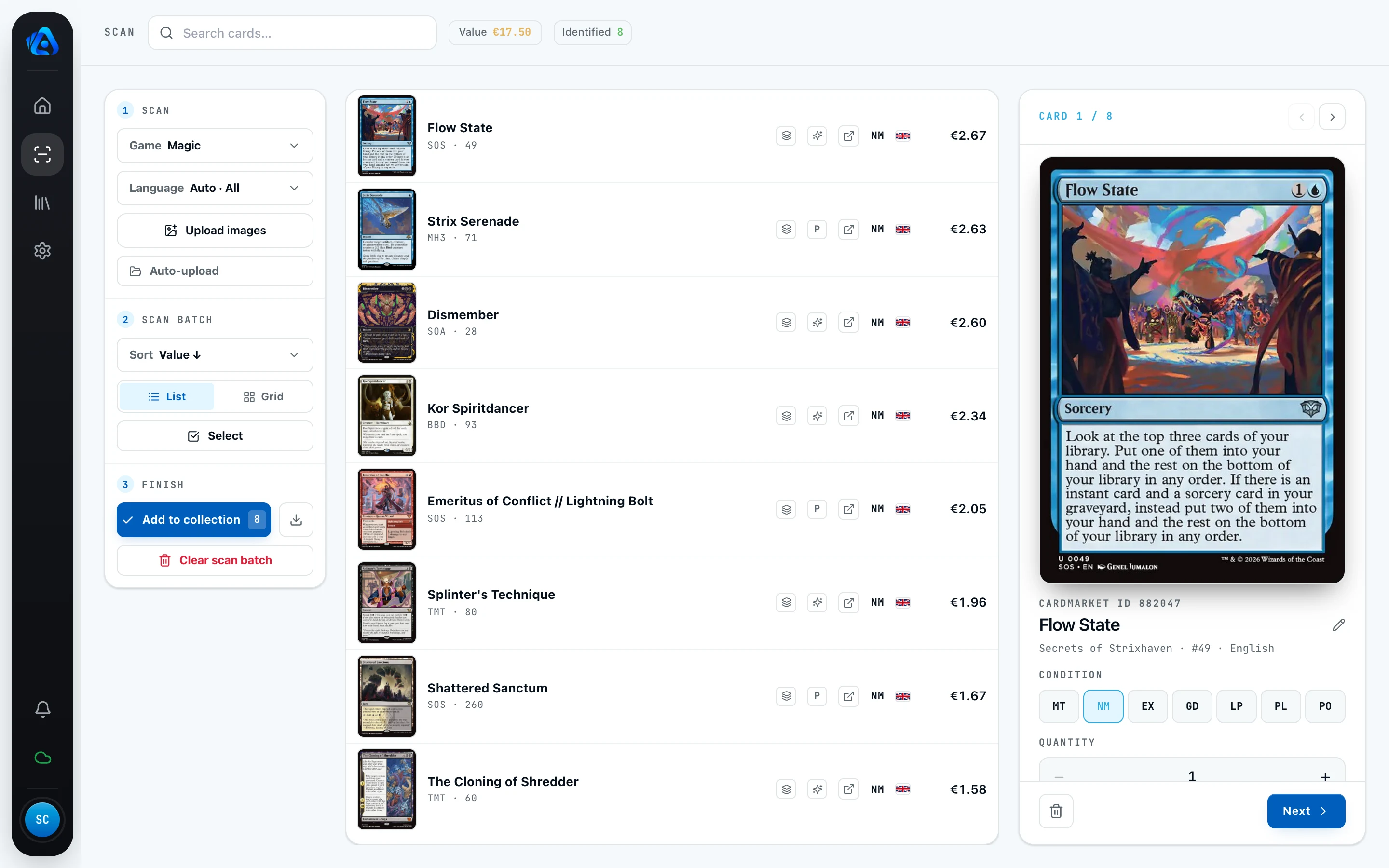
When the result is uncertain, it stays open until you confirm or correct it. Treat this review as a normal part of every batch.
Step 4: Set condition and foil on your copy
Actana does not grade the physical condition of the card in your hand. You choose the condition yourself and can correct it in the batch before export; the card condition guide explains the Cardmarket scale from MT to PO. If a whole stack shares the same condition, you can apply the choice to several cards and correct individual exceptions afterwards.
You also set foil manually. Keeping foil cards in a separate batch can make that part of the review easier, but it is not required.
Step 5: Export the reviewed batch
Once printing, condition, language, finish, and quantity are correct, export the batch directly from the Scan view as a CSV for TCG PowerTools. Actana carries those reviewed details into the file and uses the matching card identifier where available.
If a workflow contains cards from several supported games, Actana creates one file per game. Each CSV therefore matches the game you select before importing it into TCG PowerTools.
Continue with TCG PowerTools
Actana prepares the CSV but does not publish listings or upload cards to Cardmarket. Open a few rows for a spot check, then import the file under the matching game in TCG PowerTools. The steps are covered in the TCG PowerTools export guide.
Start with a manageable stack
Begin with a small, varied Magic stack rather than your largest box. It is easier to compare the results with the cards in hand, learn the review flow, and describe a problem clearly if something does not look right.