

TCG Actana identifies cards from scans and photo files. You can add a few images by hand or let the desktop app pick up new scanner files from a folder. This article explains the available import routes, what makes a useful image, and what happens before you export the reviewed batch.
Our comparison of document scanners, flatbeds, and phone photos can help you choose a capture device. This article focuses on getting the finished files into Actana.
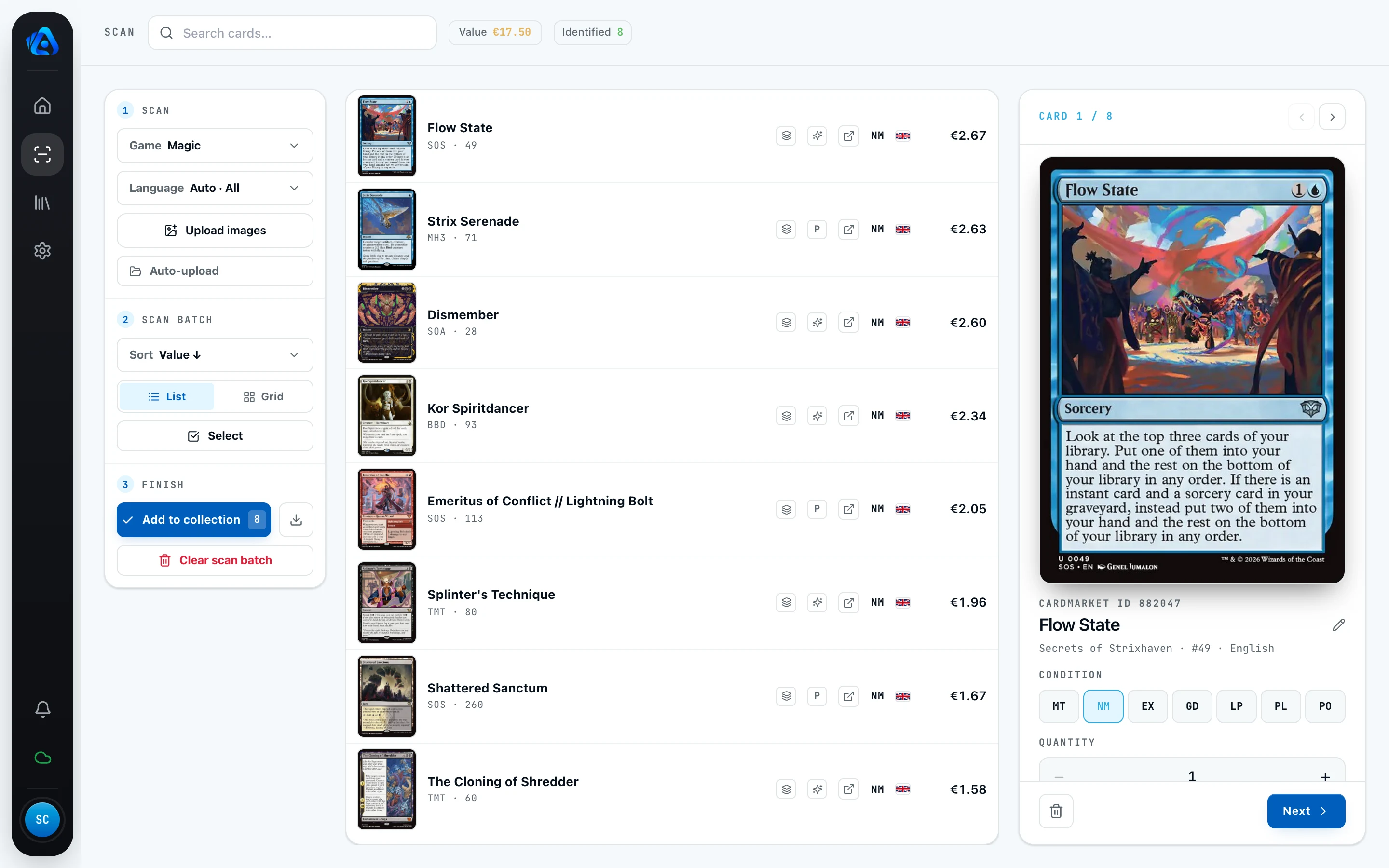
Three ways to add your images
Choose the matching game before each group of cards: Magic, Pokémon, or One Piece. If you switch games for later cards, every captured card remains assigned to its game. The export then creates a separate file for each game.
Choose image files. Open the file picker and select one or more scans or photos. This suits a specific group of images already on your computer.
Drag and drop. Move image files from your file manager straight into the scan area.
Watch a folder. Many document scanners save each scan to the same output folder. Actana can watch that folder and add new files to the batch as they appear. The guide to scanning Magic cards in bulk follows this workflow from start to finish.
Phone photos need to be transferred to your computer before you import them.
What makes a good input image
Use complete, sharp, and evenly lit images, regardless of whether they came from a scanner or a camera:
- Keep the whole card in frame. Avoid cutting off the border.
- Keep the image sharp. Hold the camera steady and check the image before importing it.
- Use even lighting. Soft, indirect light is usually easier to work with than direct flash.
- Choose a simple background. A plain surface keeps the card easy to see.
You set foil and other finishes yourself later. A complete, readable image matters more than trying to capture the shine.
Actana also has an experimental multi-card workflow for images with several clearly separated cards, including binder photos. Keep the original image and check every separated result before continuing.
What happens in the review step
Once an image is in the batch, Actana suggests a card and printing. Uncertain results stay open for your confirmation instead of entering the export unnoticed. Compare every suggestion with the physical card and correct it when necessary.
When the stack looks right, check the details on the physical copies before exporting it:
- Printing: the confirmed edition
- Condition: your assessment on the Cardmarket scale
- Language: the language of the edition
- Finish: non-foil or foil for Magic, and supported variants such as Reverse Holo for Pokémon
- Quantity: the number of matching copies
Check the printing, finish, condition, language, and quantity in the batch before creating the CSV. For grading condition, the card condition guide explains the scale. For more on why the exact Magic edition matters, see how to verify an MTG printing.
Once the cards are reviewed, export the batch as a CSV for TCG PowerTools. The TCG PowerTools export guide covers the file and the checks to make before importing it.
Continue with your game
The details differ between TCGs. Choose the guide that matches your next batch: