

Anyone capturing a card batch faces the same hardware question: is a phone enough, is a document scanner worth it, or is a flatbed the safer choice? The answer depends on the cards, the device, and how many images you want to create in one sitting.
TCG Actana works with image files on Windows PCs and Apple Silicon Macs. Scans and phone photos therefore need to reach your computer before you can add them to a batch. What makes a useful image and how the files get into the app is covered in the guide to getting cards into TCG Actana.
Document scanner with a feeder: useful for repeated batches
A suitable automatic document feeder can save each card as a separate image file. Paired with folder watching in Actana, new files can enter the batch as the scanner creates them. Scanning Magic cards in bulk follows that workflow step by step. How quickly and consistently this works depends on the scanner, its software, and the card stock.
The trade-off is mechanical contact. Rollers grip the card and pull it through the device. Some feeders can mark valuable or delicate cards, and many are not designed for sleeves or trading-card stock. Check the scanner manual and test the setup with inexpensive cards first.
Flatbed scanner: controlled handling
On a flatbed, the card rests on glass instead of passing through rollers. This avoids the mechanical feed and often provides even lighting. It can be a sensible choice when the condition of the card matters more than the number of images you create.
The drawback is handling time. Opening the lid and positioning cards takes longer than feeding individual cards through a suitable document scanner. Images containing several cards can go through Actana’s experimental multi-card workflow, whose results always need review.
Phone photos: flexible, with more variation
The camera already in your pocket may be enough for individual cards or small groups. Transfer the photos to your computer, then add them through the file picker or drag them into the scan area.
Binder and multi-card photos use the same experimental separation workflow, so verify every separated card. Use soft daylight instead of direct flash, keep the camera steady, and make sure all four card edges are visible. For a large loose stack, individual photography and file transfer may take more handling than a scanner workflow.
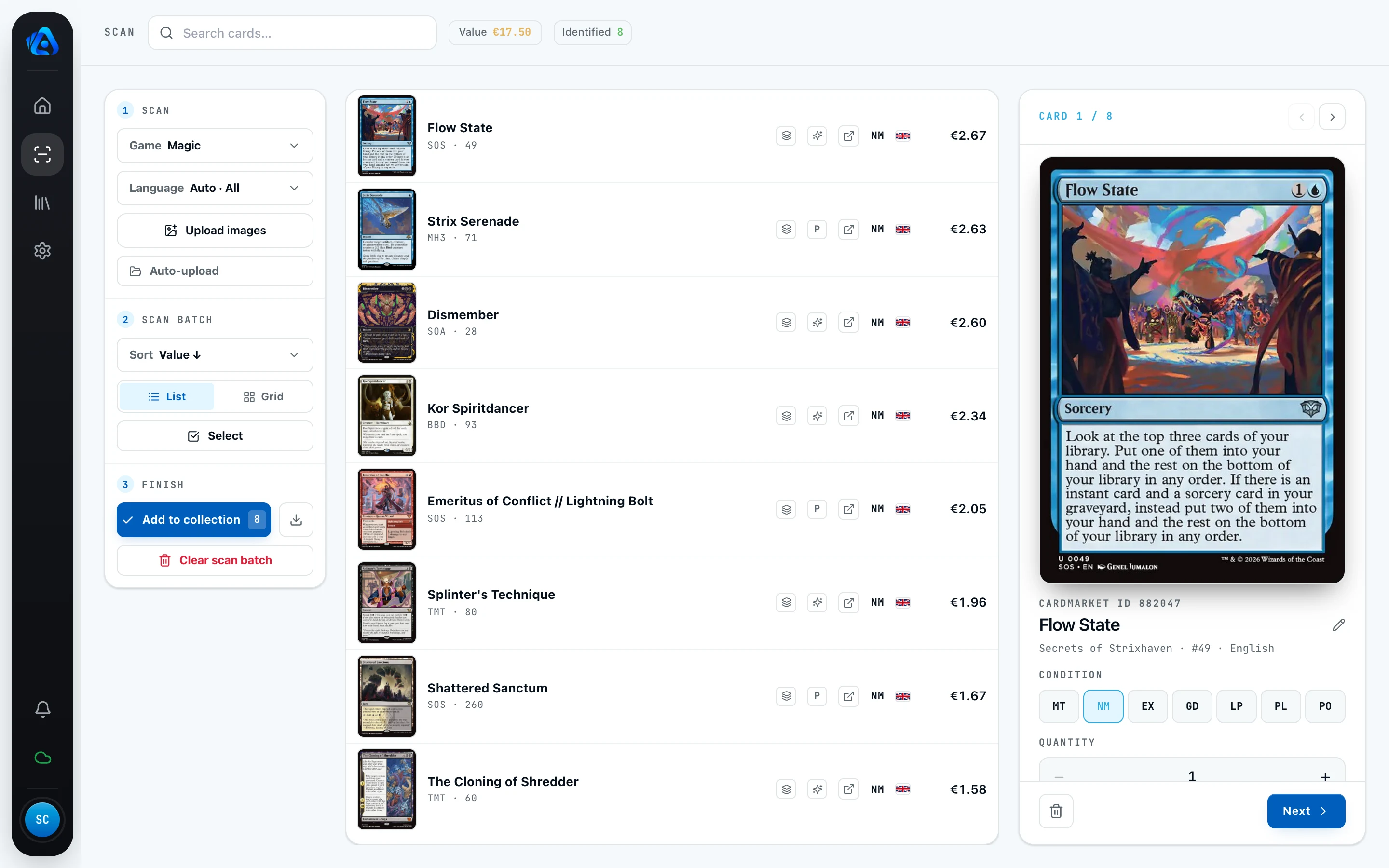
The comparison at a glance
| Criterion | Feeder scanner | Flatbed scanner | Phone photos |
|---|---|---|---|
| Speed with large volumes | high | low to medium | low to medium |
| Gentle on the cards | depends on the device | very high | very high |
| Image consistency | usually high | very high | depends on light and camera position |
| Handover to Actana | watched scanner folder | file import or watched folder | file import after transfer |
| Good fit for | larger card stacks | valuable singles | small numbers and individual cards |
Choose by card, not by one universal rule
A mixed batch may benefit from more than one capture method:
- Use a feeder only for cards and stock the device can handle safely.
- Put delicate or valuable cards on a flatbed or photograph them individually.
- Treat binder pages as experimental multi-card input and review every result.
Whichever route you choose, the workflow in Actana stays the same. The guide to getting cards into TCG Actana covers the steps from import to a reviewed CSV.